

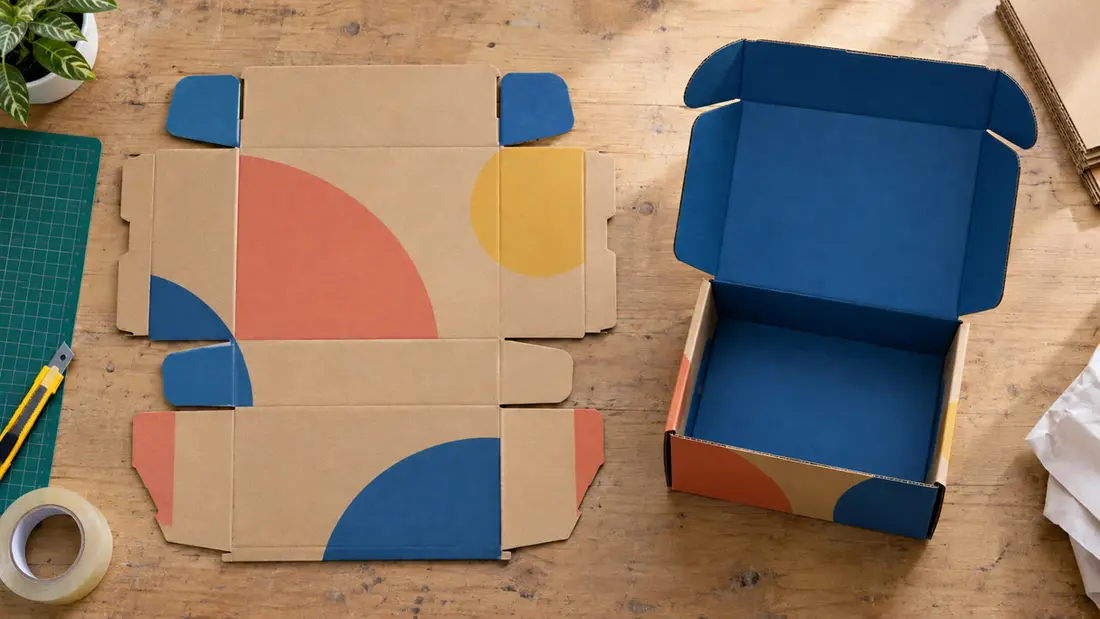
AI-generated illustration. Not a customer order or production photograph.
To design a mailer box, obtain the correct shop-approved dieline for your selected box, then place your existing branding on the panels in their assembled reading positions. Follow the specified bleed and safe areas, identify inside and outside artwork separately, and check the folded layout before submitting your production files.
Start with the structure. A logo can look centered on a flat drawing and end up sideways on the assembled box. The artwork job is to translate your existing brand into a folded object, with each message facing the person who will read it.
What should you confirm before requesting a dieline?
Angels Print’s Corrugated Mailer Boxes list an 8 x 4 x 6-inch size and a Custom Size option. Confirm the dimension order and whether the measurements describe the inside or outside before requesting artwork dimensions. A box size is not the size of the flat artwork file.
Specify your material and printed sides together. The listed materials are Standard White and Kraft (Brown); the print choices are Outside Only and Outside and Inside. The configurator confirms available combinations. Send those selections with your dieline request so your designer works against the intended configuration.
Ask for the dieline’s revision identifier, panel labels and file instructions. You also need the required bleed, safe distances and treatment of structural lines in the exported file. If those details are missing, ask Custom Packaging before building the layout. Don’t substitute a downloaded template that merely has similar dimensions.
How to design a mailer box with an annotated panel map
Have the shop approve an annotated example of your actual dieline before using it as the layout reference. The annotation plan below explains what that example should show; it is not an approved production drawing. Apply the labels only after the shop confirms which panels become the lid, walls and closure areas.
A: Outside lid. Identify the main exterior branding panel and add an arrow showing the top of the logo when the closed box faces the customer. Position the logo within that panel’s confirmed safe area. Don’t center it across the entire flat sheet.
B: Front-facing wall. Mark the wall visible from the opening side of the assembled box. Add a separate reading-direction arrow for its artwork. Depending on the structure, text that reads correctly here may appear rotated relative to the lid artwork on the flat dieline.
C: Inside lid. For Outside and Inside printing, identify where the opening message belongs and show its reading direction with the lid open. Ask the shop how the interior view corresponds to the exterior drawing. Don’t mirror the outside file to create the inside artwork.
D: Tucks and overlapping areas. Label the portions that disappear into the assembled structure or sit beneath another panel. Keep required information out of those hidden areas. Ask which regions must remain free of print; the existence of a flap alone does not establish a no-print rule.
Use the annotated example beside a folded paper mockup to check those arrows. A reduced mockup can reveal an upside-down message, but it cannot validate final-size clearances or corrugated-board fit. Have the shop confirm the panel map before treating it as approved.
Which lines are cuts, folds and artwork boundaries?
Read the dieline legend first. Cut lines mark where the board is cut; fold or score markings indicate where it bends. Bleed and safe-area guides serve different purposes. Line colors and dash patterns are not universal, so a red line in another supplier’s template tells you nothing certain about this file.
Keep structural guides separate from printable artwork while designing, following the supplied layer instructions. Don’t redraw, stretch or move a cut line to make the logo fit. Adjust the artwork instead. Changing the structure requires a revised, approved dieline.
Ask how the shop wants guides handled in the final export. Some workflows require designated technical layers or spot colors; others require separate reference and print files. Follow the instructions for this order. Leaving every guide visible can turn a useful annotation into an unwanted printed line.
How close can your branding sit to an edge or fold?
Use the supplied measurements. There is no confirmed bleed or safe-area value in the listed product options, so don’t apply a familiar business-card margin to this box. Bleed extends artwork beyond a cut boundary; the safe area keeps critical content away from edges and other specified structural features.
Extend background artwork into the required bleed, while keeping logos and text inside the approved safe areas. Treat folds as review points too. A narrow border running beside a fold can make small production variation conspicuous, and lettering crossing a bend can become harder to read.
Check each panel at final size. A logo copied from a website may lose sharpness when enlarged; use vector artwork where available and inspect raster resolution at its placed size. If you include a QR code, preserve its clear surrounding space and test a final-size print before submission.
Will your existing colors work on the selected material?
The substrate contributes to the appearance. Brown kraft can affect how printed colors look, so a brand color viewed against a white screen is not a reliable preview of that material. Ask how the selected artwork will reproduce on the chosen board, including any assumptions about white areas.
Finishes need confirmation too. The supplied options do not establish a gloss coating, matte laminate or foil treatment. Don’t build artwork around an unconfirmed finish. If your branding depends on a particular effect, settle its availability and file requirements before completing the layout.
Keep your brand color references with the artwork, and ask which color settings the shop requires. Screen colors are not an exact match to print. Request a hard proof for critical color, and confirm the arrangements before ordering.
What affects the artwork scope and order cost?
The listed starting price for Corrugated Mailer Boxes is $1001.62. Size, material, printed sides and quantity are configuration decisions to settle before finalizing files; checkout provides the final price for the selected combination. Quantity options include 25, 50 and 100, with further listed choices up to 1000.
Adding interior artwork creates another surface to prepare and review. Changing box dimensions can require repositioning every panel’s content. For broader purchasing questions, read the corrugated mailer box materials and cost guide; keep this artwork review tied to one confirmed configuration.
What should you check before payment?
Request a digital proof and arrange the review before paying if you need to check it before manufacturing. Angels Print provides digital proofs on request, and manufacturing starts immediately after payment. Don’t assume checkout creates an automatic proof-approval hold.
Review the proof against the annotated dieline. Check the revision and dimensions, then trace the reading direction from the closed lid to the inside message. Inspect spelling and hidden flap areas separately. Confirm that structural guides will be handled as instructed and that both printed sides are identified correctly.
Use the file types listed beside the artwork upload. A print-ready PDF can be useful, but its export settings must follow the selected product’s requirements. Open the exported file and inspect it before submission. Uploading artwork or seeing a preview does not confirm production readiness.
Get the correct dieline before designing, then order your confirmed configuration online. For help placing existing branding, contact Custom Design, call Angels Print at (818) 806-9006 or visit 8511 Lankershim Blvd, Sun Valley, CA 91352. Bring your logo files and selected box specifications so the artwork can be prepared for the right structure.
Frequently asked questions
How do I get a dieline for a mailer box?
Ask the print shop for the correct dieline for your selected size, material and printed sides before designing. Confirm its revision, panel orientation, bleed and safe-area instructions. A template with similar dimensions does not establish compatibility with your box.
How do I orient artwork on a mailer box dieline?
Identify each panel in the assembled box, then add reading-direction arrows to a reference copy. Check the closed lid, front wall and open inside lid separately. A folded paper mockup helps reveal orientation mistakes, but the shop should confirm the panel map.
Can I print inside and outside a mailer box?
Angels Print lists Outside Only and Outside and Inside options for Corrugated Mailer Boxes. Available combinations depend on the configuration. Confirm how the shop wants the two surfaces supplied and labeled; do not assume the interior file is a mirrored exterior layout.
How much bleed does a mailer box need?
Use the bleed specified for your selected box and approved dieline. The supplied product options do not establish a numeric bleed requirement. Ask before preparing the file, and distinguish bleed outside cut boundaries from safe areas protecting text and logos.
Will I receive a proof before my mailer boxes print?
A digital proof is available on request. Manufacturing starts immediately after payment, so arrange any needed review before paying rather than assuming production waits for approval. Screen colors may differ from printed output; request a hard proof for critical color.