

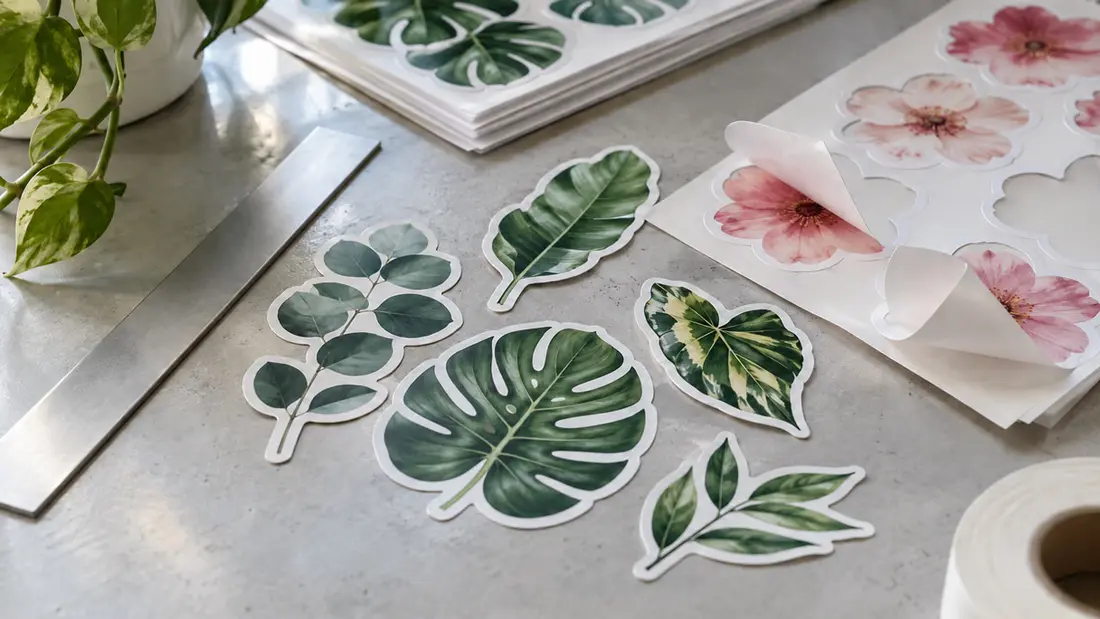
Here’s how to prepare sticker artwork: work at the final print size, extend edge backgrounds into the required bleed, and keep important details inside the safe area. Separate the intended cut from printed borders. Then export an accepted file type. Follow your selected product’s requirements, and ask Angels Print about any missing measurements or cut-path instructions before building the file.
How to prepare sticker artwork from an existing logo?
Start with your original artwork. A vector logo keeps clean edges as you resize it, while a screenshot has a fixed pixel count and may include unwanted background pixels. For illustrations, use your highest-resolution original. Saving a small image as a PDF won’t restore missing detail.
Check raster resolution at finished size. A 900-pixel-wide illustration placed 3 inches wide has 300 pixels per inch. That describes image detail, not an Angels Print acceptance requirement. Confirm the required resolution for your product. Enlarging the image reduces its effective PPI.
Read small lettering at actual size. A logo that looks clear across your monitor may have unreadable text on a sticker, even though zooming in makes everything look fine. Simplify secondary wording or adjust the layout before preparing the production file.
Which product settings should you settle first?
Choose your product and finished dimensions. Both featured products list a 3 x 3-inch size, other presets and custom sizes. Shape dependencies affect Die Cut Stickers, so check the combination in the configurator. Once bleed is included, document dimensions may differ from finished dimensions.
Die Cut Stickers start at $92.25, with a default run of 100 pieces. Kiss Cut Stickers start at $97.25, also with a default run of 100 pieces. Both list quantities from 50 to 5000. These are starting prices. Checkout confirms your configuration’s price.
Material and finishing affect the order, too. Both products offer paper, white matte vinyl and clear vinyl options; available finishes depend on other selections. Dimensions, quantity and finishes can change the price. Set your choices before requesting artwork instructions.
Where do the artwork boundary, bleed and safe area go?
Use a current shop template if one is available for your configuration. The supplied product information includes no downloadable template, numerical bleed or safe-area measurements, or cut-path naming instructions. Ask before you export. A generic template cannot establish Angels Print’s specifications.
The labels below describe conceptual layouts. They aren’t shop templates or measured production diagrams. Match each boundary to the confirmed instructions for your order.
Artwork boundary: This is the outer extent of the supplied artwork. For edge-to-edge color, the background must reach the required bleed boundary. Check the finished shape separately. An image’s rectangular bounding box doesn’t automatically describe it.
Cut path: This marks the intended finished edge, with backgrounds potentially extending beyond it and important content staying inward. A visible logo outline isn’t automatically a production cut path.
Bleed boundary: This sits outside the intended cut. Continue the background through it so small cutting variations don’t expose an unwanted unprinted edge. Extend the actual artwork. Enlarging an empty canvas won’t create bleed.
Safe area: This sits inside the cut boundary. Keep lettering and details you cannot lose within it. Bleed doesn’t replace the safe area. They solve different problems.
How should a die-cut logo border be prepared?
Consider a logo with a white border on white matte vinyl. In this hypothetical example, A is the logo edge, B is the intended sticker cut, and C is the confirmed safe-area boundary. The visible border lies between A and B; important logo details must also stay safely within C.
Inspect the entire border. A narrow gap beside one letter can look uneven even if there’s generous space elsewhere. Small trim variation is normal. Very thin borders make it easier to notice, so confirm an acceptable width instead of borrowing one from an unrelated template.
For edge-to-edge color, extend the background beyond B to the confirmed bleed boundary. Leave the logo’s proportions intact. Stretching the whole logo to create bleed changes its proportions and placement.
Ask how to deliver the cut path, including any required layer, spot-color name or stroke settings. Keep an editable source file. Flattening a colored guide into the illustration doesn’t mean the upload system will recognize it as a cutting instruction.
What should a kiss-cut illustration file identify?
For a hypothetical kiss-cut illustration, label A as the peelable artwork contour and B as the outer backing boundary. Confirm what the ordered dimensions describe. The catalog’s Kiss Cut label alone doesn’t supply a backing margin or define its artwork requirements.
Keep important illustration details inside A’s associated safe area, extending color by the required bleed amount wherever it reaches that contour. Separate backing guides from the illustration contour. Ask if your configuration supports any proposed printing outside the peelable shape.
Check those boundaries before arranging multiple stickers. Preparing one illustration doesn’t require turning it into a sheet layout. For several stickers arranged together, use the sticker sheet layout guide to review that ordering decision.
What changes for clear materials and special finishes?
White-looking space doesn’t itself specify white ink. Both catalogs pair certain materials with Full Color + White, but the option doesn’t explain how to build a white-ink separation. Decide what should appear opaque or transparent. Then request that material’s file instructions.
Foil and raised spot UV can require additional artwork information. Ask before creating masks or separations. Compatibility depends on your configurator selections, even if an option appears elsewhere in the catalog. The Sticker & Label Printing service provides a starting point for discussing your job.
What should you check before submitting artwork?
Configuration check: Match the artwork to your selected dimensions, material and finishing. Record the quantity, too. Resolve any unclear relationship between sticker size and backing size before uploading.
Boundary check: Verify the cut contour against the confirmed instructions and inspect borders for narrow spots. Check both sides of the cut. Backgrounds must reach the required bleed boundary, while important content stays inside the safe area.
Export check: Use a file type listed beside the artwork upload. A print-ready PDF can suit a finished layout, but product requirements still apply. Reopen the exported file. Inspect font appearance and image detail, and look for guides that shouldn’t print.
Approval check: Uploaded files are attached as supplied; neither upload nor preview confirms production readiness. Request a digital proof by email. Review spelling and layout, including the intended cut, before approving. Production begins after your approval. Request a hard proof for critical color.
Order online once your file meets the confirmed requirements, or use Custom Design for help preparing existing artwork. Need template or setup instructions? Call (818) 806-9006, email hello@angelsprint.com, or visit Angels Print at 8511 Lankershim Blvd, Sun Valley, CA 91352.
Frequently asked questions
How much bleed do I need for sticker artwork?
Use your selected product and configuration’s specified measurement. The supplied catalog gives no numerical requirement. Ask if upload instructions don’t provide one, then extend the background beyond the intended cut by that amount.
What file format should I use for sticker printing?
Check beside the artwork upload. Use a listed file type; a print-ready PDF can suit a finished layout, but accepted formats and other requirements depend on the product. Check resolution at final size and inspect the export.
Is a white sticker border the same as bleed?
They serve different purposes. A border is visible inside the finished cut edge; bleed extends outside it to accommodate cutting variation. A white border doesn’t automatically specify white ink on clear or specialty material.
Do I need to add a cut line to my sticker file?
Confirm the product’s cut-path requirements first. Ask how to supply the contour and if specific layer or spot-color settings apply. A printed outline isn’t automatically recognized as a production cut path.